Overview
Within the Track > Reviews section of ASPS Insights, managers and admins can:
- Assign new reviews
- Monitor review status and completion
- Send reminders
- Edit or reassign reviews as needed
This functionality helps managers keep development efforts aligned with business priorities, while also identifying coaching opportunities through structured behavior-based feedback.
How to Schedule a Review
To assign a review:
-
Filter to Select Participants
Use filters at the top of the Reviews page to narrow your user list by name, job title, manager, department, location, or business unit. -
Click "Schedule Reviews"
Once your target users are selected, click the Next button to begin the setup process. -
Set Review Details
-
Review Type
Choose either a Full Review (all behaviors tied to the user’s role) or a Partial Review (select specific behaviors). -
Assessment Method
Choose one of the following:- User: User completes a self-assessment
- Manager: Manager completes the review
- User & Manager: A combined view is created based on input from both the user and manager
- Launch Date: Select when the review becomes visible to users
- Due Date: Set a deadline that aligns with coaching cycles or training follow-up
- Custom Instructions: Add an optional message with context (e.g., “This review is part of our Q3 coaching plan.”)
-
Optional Settings:
- Enable system reminders
- Copy reviewers on the final summary
-
Review Type
-
Click Save
The system will notify users when the review becomes active.
Tracking Review Progress
Admins and managers can search for users directly via:
- User name
- Email address
- Job title
Click the Filter button to open options that let you sort, select multiple values, and narrow your results by:
- Role
- Department
- Business unit
- Location
- Language
- Review status: Outstanding, User Done, Reviewer Done, Complete
- Manager
- Dates: Due, Completion, Creation, Launch
- Review Type
- Assigned By
Tip: The Click any status count at the top of the page to instantly filter the review list. This makes it easier to move from high-level insight to targeted action without manually applying filters.
Click to View: Tracking Progress of Capability Reviews
Managing Reviews
From the Review Tracker, you can:
-
Nudge: Send a reminder to incomplete users or reviewers.
If one party has completed the capability review (e.g., the seller or the manager) but the other has not, only the individual who has not completed the review will receive the nudge email. For example, if the seller has completed their review but the manager has not, only the manager will be notified—and vice versa.
When you click the Nudge button, the following message will appear. The email will be sent only to those who still need to complete the review.
- Note: Using Select All only selects the users on the current page. To send nudges to users on other pages, navigate to each page, select all again, confirm the total selected count at the bottom matches your expectation, and then send.
-
Edit:
- Change due date
- Update reviewer
- Add or remove users
- Unassign: Remove a review if scheduled in error
Editing Individual Reviews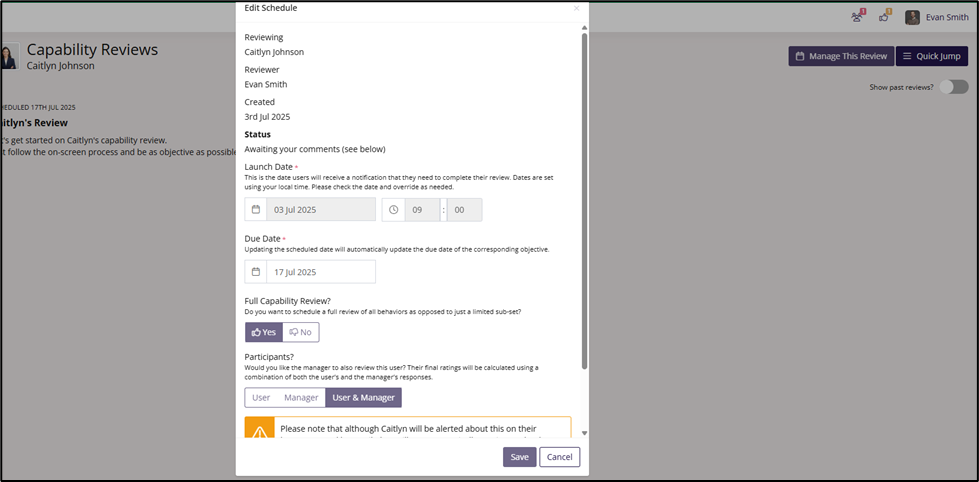
If a review has not been submitted, you can edit it from the user’s detail page:
- Click the team member’s name
- Select Manage This Review in the top right corner
- Make necessary changes
Bulk Edit for Incomplete Reviews
Managers and admins can perform bulk edits on incomplete reviews:
- Reassign reviews to a new manager
- Update due dates
- Apply both updates at once
To edit in bulk:
- Select the users
- Click Edit
- Update the reviewer and/or due date fields
Best Practices
- Schedule reviews shortly after training to assess new skills
- Use Partial Reviews to focus on behaviors relevant to recent coaching or initiatives
- Monitor completion and send reminders proactively
- Include clear instructions so users understand what is being assessed